Code search
How to search for codes, descriptions, tags and families in the Codes section of LiquidoDocs Explorer.
Search in the Codes section
The search bar in the Codes section lets you filter archive items in a simple and progressive way.
By typing in the search field, you can search by code and description. You can also use the search menu to filter results by tags or families.
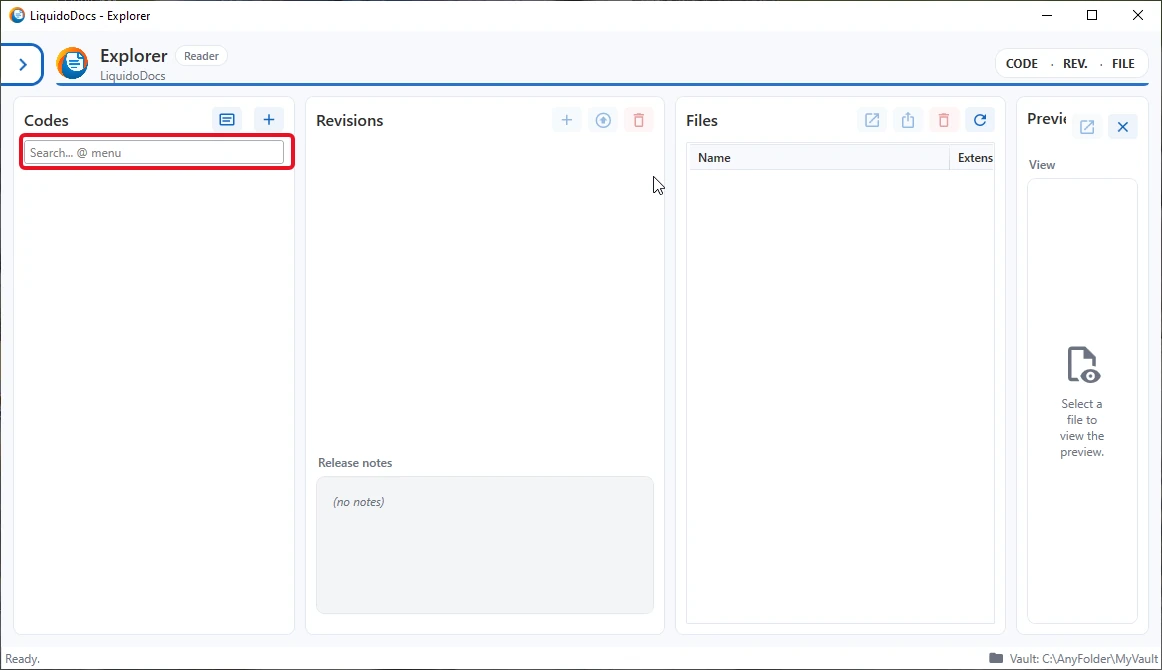
Search by code and description
If you type plain text in the search field, Explorer searches for matching items by code and description. This is the fastest way to find a document when you know part of the code or descriptive text.
Simple search example
By typing part of the code or description, the list is filtered automatically and shows only the items compatible with the entered text.
Search menu
Typing the “@” character in the search field shows the menu of available filters. From this menu you can choose whether to search by families or tags.
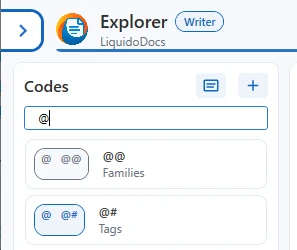
Search by tag
To search by tag, you can use the “@#” command. Explorer shows the available tags and lets you select them from the list.
Tag syntax
The tag filter uses the “@#TagName” form. After selecting a tag, Explorer returns to item search and shows the codes matching the entered filter.
You can combine the tag filter with a free text search in the same field.
Search by family
To search by family, you can use the “@@” command. Explorer shows the available families and, after selection, lets you choose one of the choices associated with the family.
Family syntax
The family filter uses the “@@Family=Choice” form. After selecting the family and choice, Explorer returns to item search and shows the codes matching that filter.
Families are useful when you want to filter items by structured classifications, not only by words found in the code or description.
Combine text, tags and families
Search can combine free text, tags and families. This lets you progressively narrow the code list starting from different types of information.
Combined search example
You can search for a word found in the code or description and add a tag or family filter in the same search field.
Advanced features
The search bar is designed to be extended over time. In the future, advanced filters may be added while keeping the same principle: type in the field, choose the suggested filter and narrow the results.
Other guides about codes
Consult the other documentation sections to create new codes, edit descriptions and associate families and tags.