Delete a draft
How to delete a draft in LiquidoDocs Explorer and what happens depending on the code status.
Deleting the draft
A draft can be deleted when you no longer want to keep the prepared changes.
Deleting the draft has different effects depending on whether the code is still in “pre” status or already has one or more published revisions.
Code in pre status
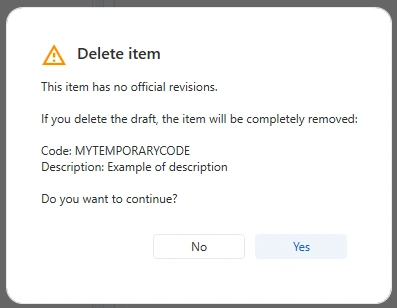
If the code is still in “pre” status, deleting the draft means completely deleting the code. This happens because there is not yet any published revision to keep.
Code with published revisions
If the code already has published revisions, deleting the draft removes only the current work. Previous revisions remain available and accessible.
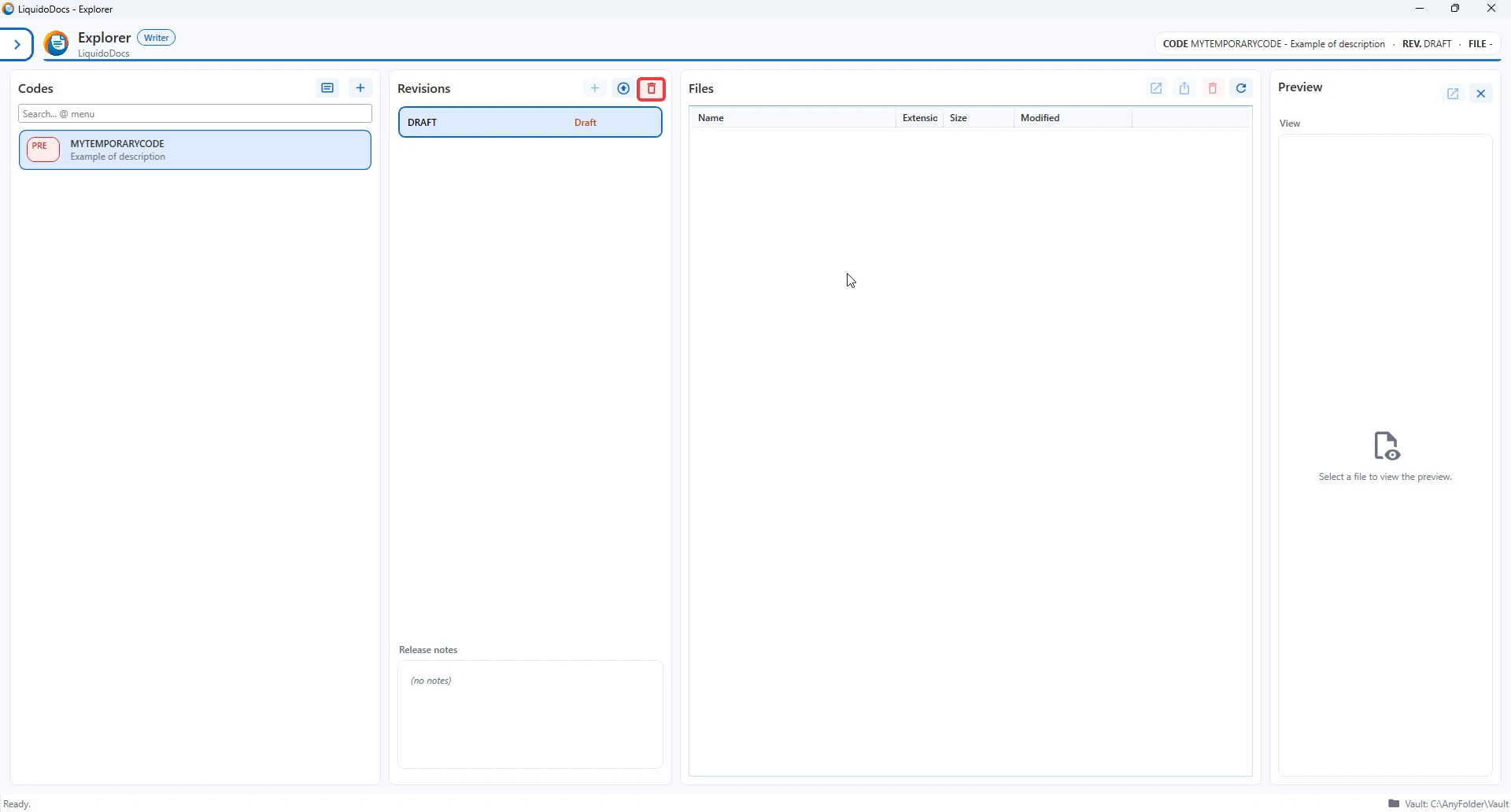
Use the trash button
To delete a draft, select the code and press the trash button in the revisions section.
Confirm deletion
After pressing the trash button, Explorer shows a confirmation request. The message explains what is about to happen so you can check the action before continuing.
After deletion
After confirmation, Explorer updates the code situation according to the previous status.
- If the code was in “pre” status, the code is removed from the list.
- If the code had published revisions, the draft is removed but previous revisions remain available.
Other guides about drafts
See the other documentation sections to create a draft, add files or promote it to a revision.