Add and remove files
How to import, open, export, delete and refresh the files of a draft in LiquidoDocs Explorer.
Files in the draft
In the draft, you can prepare the files that will be part of the next document revision.
The files section shows the documents contained in the selected draft. From here you can add new files, open them, export them, delete them or refresh the list.
Import files with drag and drop
To import files into the draft, drag them directly into the files section. Explorer adds them to the current draft, so you can check them before promoting the content to a revision.
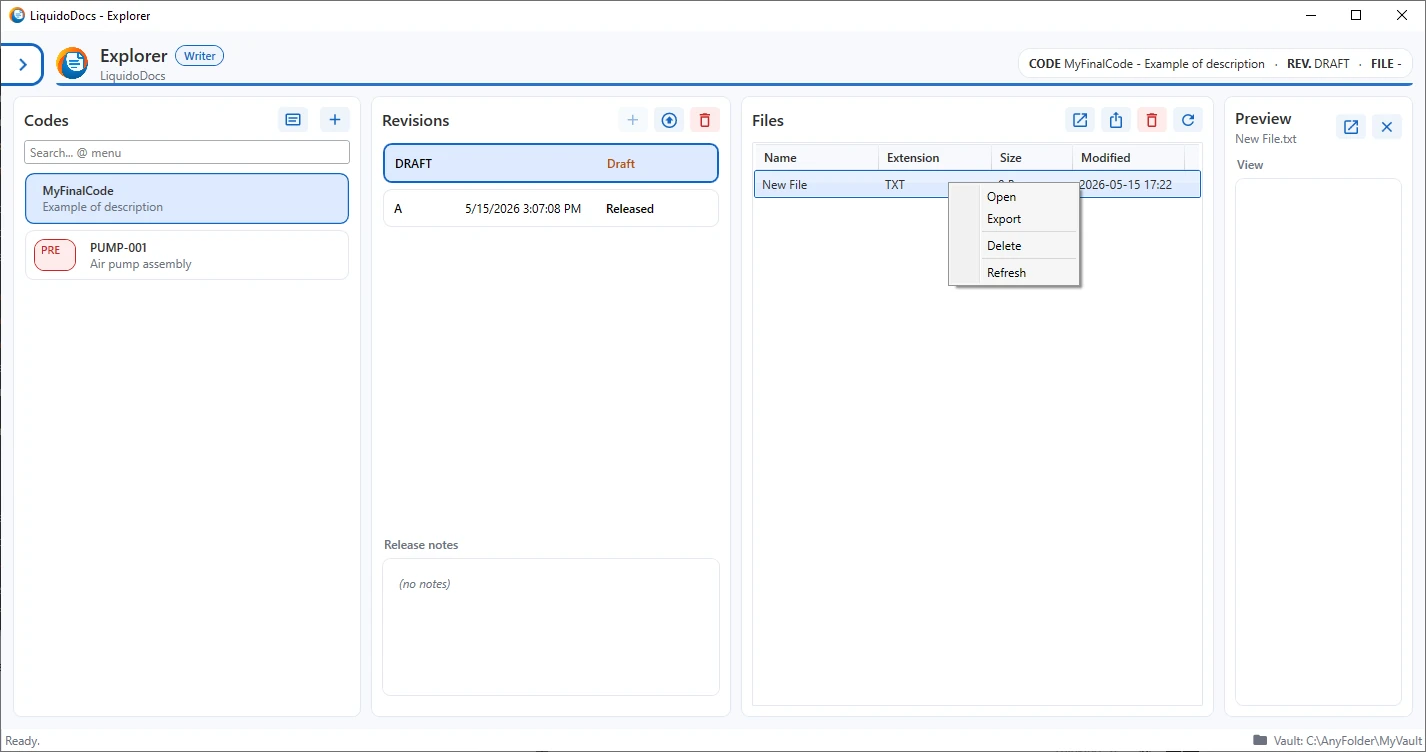
Available file commands
After importing one or more files, you can use the buttons at the top of the section or the context menu opened with the right mouse button.
- Open: opens the selected file with the program associated in the operating system.
- Export: copies the selected file outside the archive, to the location chosen by the user.
- Delete: removes the selected file from the current draft.
- Refresh: reloads the list of files shown in the section.
Files and revision
Changes to files take place in the current draft. This lets you prepare the document content before making it official.
When the draft is promoted to a revision, the files present at that moment become part of the published revision.
Other guides about drafts
Consult the other documentation sections to create a draft, promote it to a revision or delete it.