Promote a draft to a revision
How to turn a draft into a published revision in LiquidoDocs Explorer.
From draft to revision
When the content of a draft is ready, you can promote it to a revision.
Promotion makes the document content prepared in the draft official. The files contained in the draft and the notes entered in the confirmation window become part of the new published revision.
Open draft promotion
Select a code that has a draft and press the promotion button. Explorer opens the confirmation window before creating the new revision.
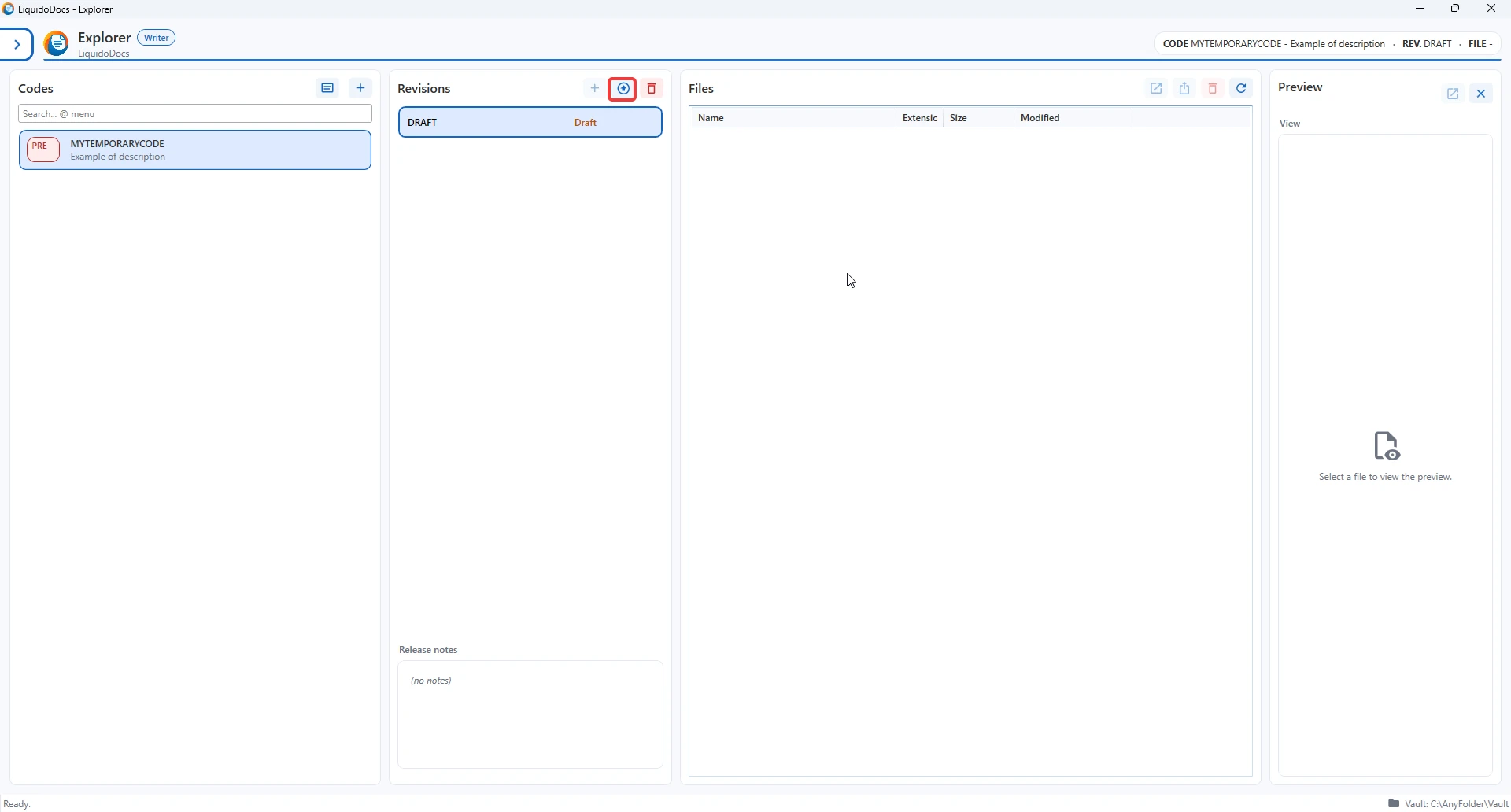
Confirm revision data
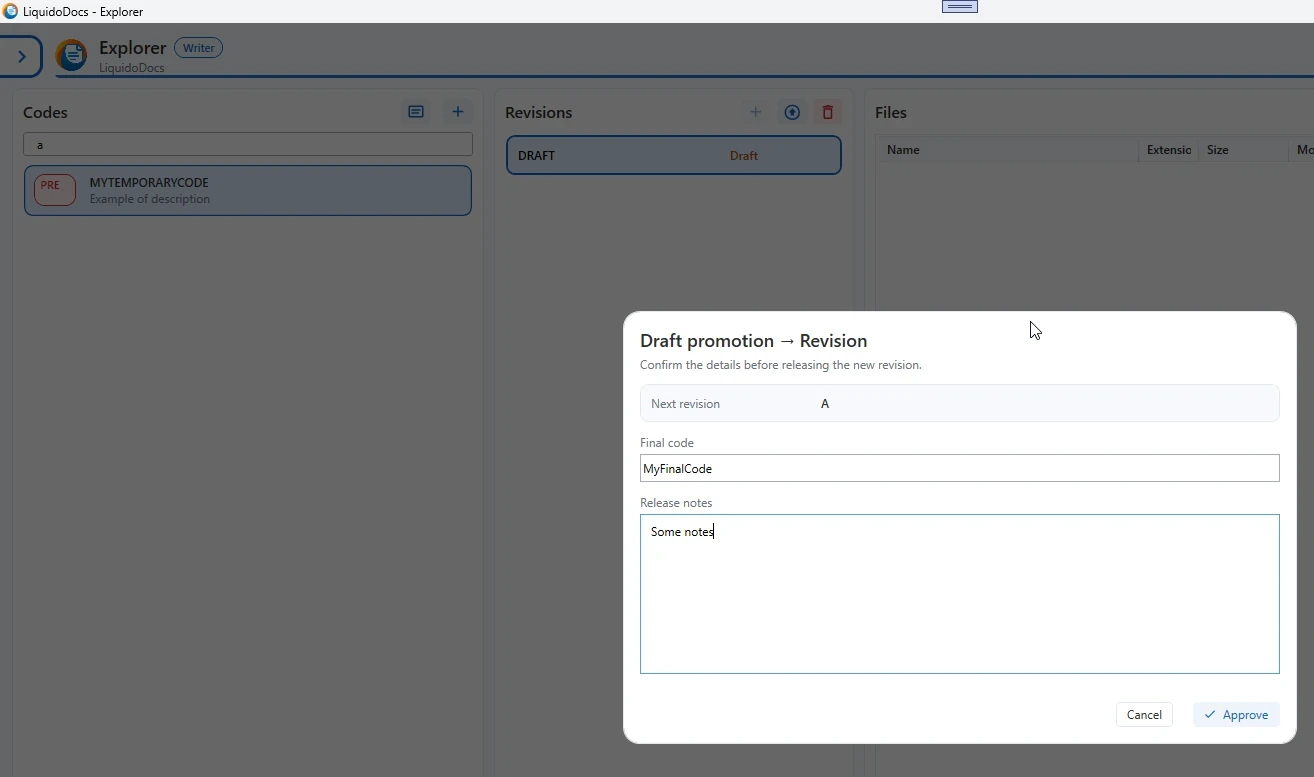
In the “Draft promotion → Revision” window, you can check the revision that will be created, confirm the final code and enter the release notes.
- Next revision: shows the next revision that will be generated.
- Final code: lets you confirm or correct the final code before publication.
- Release notes: lets you enter a description of the changes or published content.
Approve the revision
When the data is correct, press “Approve” to create the new revision. If you do not want to proceed, press “Cancel” to close the window without publishing the draft.
First revision and later revisions
When you promote the initial draft of a new code, Explorer creates revision A. From that moment, the code is no longer in “pre” status.
For codes that already have a published revision, later drafts are promoted to the following revisions.
Other guides about drafts
Consult the other documentation sections to create a draft, add files or delete a draft.