View previews
How automatic file previews work in LiquidoDocs Explorer.
File preview
When you select a file, Explorer tries to show its preview automatically.
The preview helps you quickly recognize the content of a file without having to open it every time with an external program.
Automatic display
When you select a file in the files section, Explorer creates a consultation copy in the preview folder and, when possible, shows the preview in the dedicated panel.
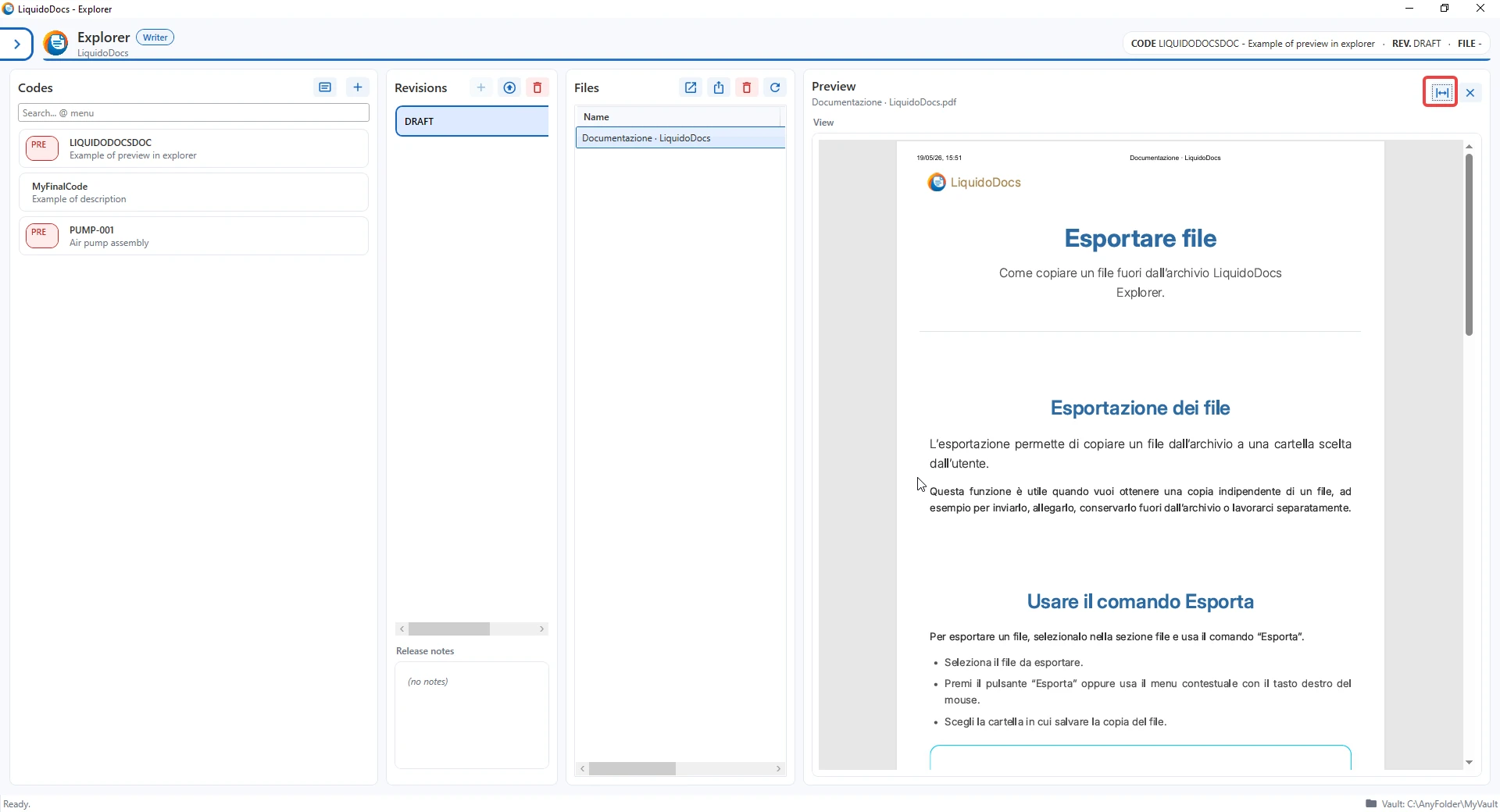
Expand or reduce the preview
The preview panel can be expanded or reduced with the dedicated button. This lets you give more space to the view when you want to check a file more closely, or reduce it when you prefer to focus on the file list.
Preview copy
To preview a file, Explorer works on a consultation copy. This makes it possible to display or open the content without directly affecting the archived file.
Preview copies are saved in a dedicated local folder, organized by code and revision, to keep the temporary management of consulted files more orderly.
When preview is available
Preview depends on the file type and the components available on the computer. Some formats can be shown directly, while others may require opening with an external program.
Drafts and published revisions
Preview is used to consult the content, but file behavior remains different between drafts and published revisions.
- In the draft, files belong to the current workspace and can be modified with the available commands.
- In published revisions, Explorer protects the archived content and works on consultation copies.
Other guides about files
Consult the other documentation sections to import, open, export or delete files.