Open files
How to open files from LiquidoDocs Explorer by double-clicking, using commands or drag and drop.
Opening files
Explorer lets you open files contained in a draft or in a published revision.
Behavior changes depending on the context: in drafts you can work on the draft files, while in published revisions Explorer opens a consultation copy to protect the archived content.
Ways to open a file
You can open or use a file in different ways, depending on the program you want to work with.
- Double-click: opens the selected file with the program associated in the operating system.
- Buttons and context menu: let you open, export, delete or refresh files from the files section.
- Drag and drop: lets you drag the file directly into an already open program.
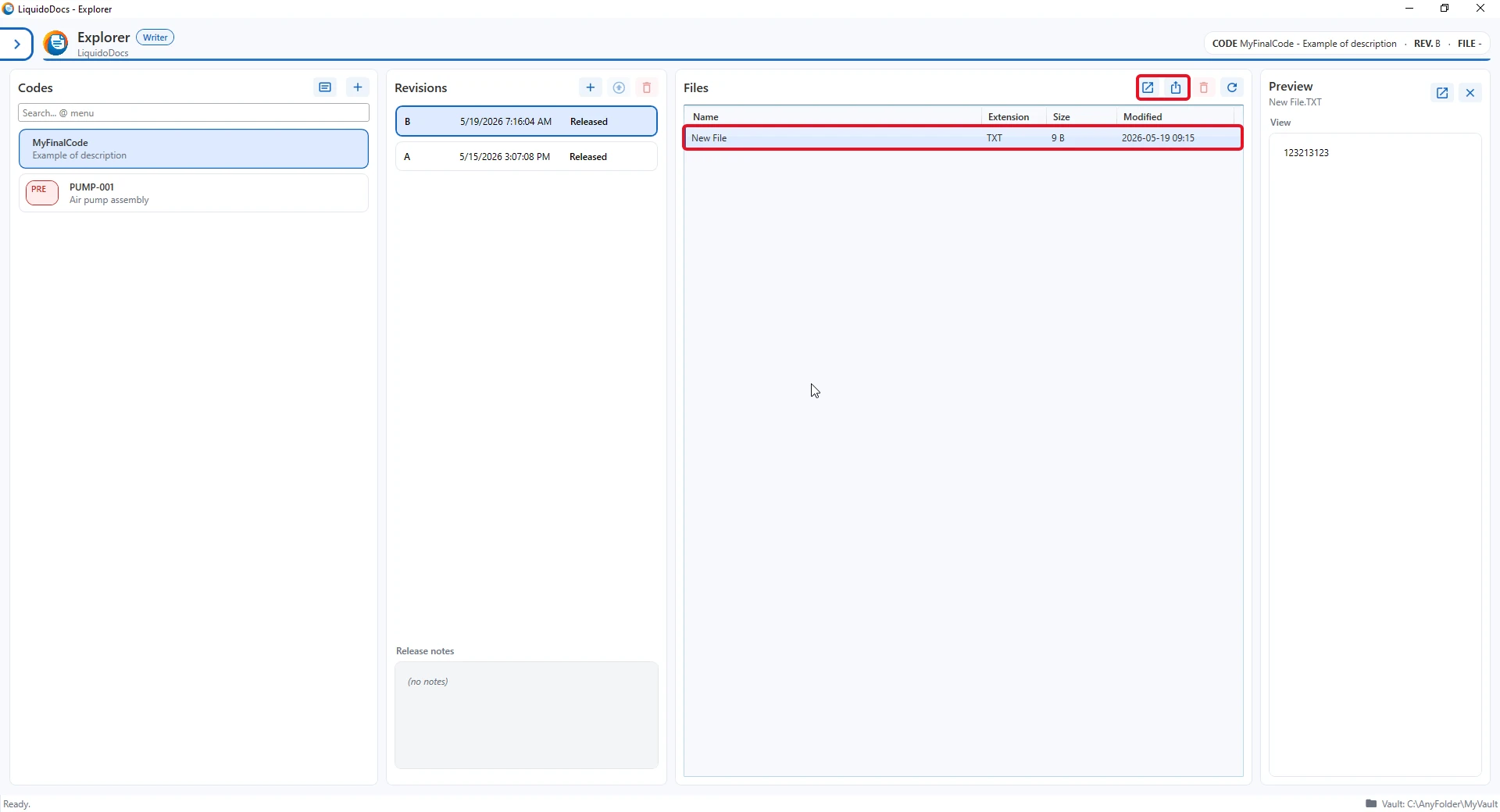
Opening from a draft
When you are working on a draft, the files belong to the current workspace.
If you open a draft file and edit it with an external program, the change remains in the draft. This lets you prepare the content before promoting it to a revision.
Opening from a published revision
When you open a file from a published revision, Explorer creates a temporary readable copy for consultation.
If the file is saved by the external program, the change affects the preview copy. The files archived in the revision remain intact and are not modified directly.
Open with drag and drop
Drag and drop is useful when you want to use an already open program, especially if it is heavy software that takes time to start. You can drag the file from Explorer directly into the program.
When to use export
If you want to work on an independent copy outside the archive, you can export the file to a folder of your choice and open it later from that location.
Other guides about files
Consult the other documentation sections to import, export, delete or view file previews.